Printer Driver Learning Guide

What does a printer driver do?

Learn what printer drivers are, why they matter, which driver may be needed, how drivers are usually installed, and what common driver messages mean.

Driver unavailable Correct model driver Install methods
Printer driver learning guide

Topic

Printer Drivers

Purpose

Printer Communication

Common Issue

Driver Unavailable

Purpose

Educational Only

Driver Meaning

A printer driver acts like a translator.

A printer driver is software that helps the operating system communicate with a printer. When a user clicks print, the computer has to send page layout, paper size, color, quality, and device instructions in a format the printer can understand.

Without the correct driver, the printer may still appear in settings, but some features may not work correctly. In some cases, Windows may show messages such as “Driver unavailable,” “Printer not detected,” or “Printer offline.”

A printer driver may control basic printing, color output, duplex printing, paper tray selection, print quality, scanning features, and model-specific printer options.

01

Document

User clicks print

02

Windows

Print request begins

03

Driver

Instructions are translated

04

Printer

Device receives commands

05

Output

Page is printed

Why It Matters

Drivers affect more than just printing.

The driver can affect what paper sizes appear, whether color options are available, whether scanning features work, and whether Windows can send jobs to the correct printer model.

Print Quality

Controls quality levels, color mode, grayscale, and output detail.

Paper Settings

Shows paper size, paper type, tray, margin, and layout options.

Printer Features

May enable duplex, scanning, copy tools, borderless print, or special modes.

Communication

Helps Windows send correct instructions to the selected printer model.

Driver Types

Which printer driver may be needed?

Different printers may use different driver types. The correct driver depends on printer model, operating system, connection type, and required features.

01

Manufacturer Driver

Usually provides the most complete feature set for a specific printer model.

Best when model-specific features are needed.

02

Basic Driver

Provides essential printing functions with fewer extra features.

Useful when only simple printing is needed.

03

Universal Driver

Designed to work with multiple printer models from the same manufacturer.

Common in offices or shared printer environments.

04

Network Printer Driver

Used when a printer is shared across a local network or print server.

Helpful for Ethernet or office network printers.

05

Class Driver

A generic driver Windows may use for compatible devices.

Useful for basic recognition when full driver is unavailable.

Driver Issues

Common signs of printer driver problems.

These issues do not always prove the driver is the only cause, but they commonly appear when the printer profile, connection, or driver layer is not working correctly.

01

Driver unavailable message

Windows may not have a working driver for the selected printer profile.

What to check

Check printer model number.
Use Windows Update or official manufacturer website.
Avoid random driver download pages.
Remove old printer profile if duplicate entries exist.
02

Wrong model driver installed

The printer may appear, but options may not match the actual printer model.

What to check

Compare printer model label with selected profile.
Check manufacturer series name carefully.
Remove incorrect profile.
Add the correct model again.
03

Printer not detected after connection

The printer may not be detected through USB, Wi-Fi, Ethernet, or network discovery.

What to check

Check printer power.
Check USB or network connection.
Confirm same Wi-Fi network.
Try add printer from settings.
04

Print queue stays stuck

A print job may be blocked before the driver sends it correctly to the printer.

What to check

Open print queue.
Cancel old jobs.
Restart printer.
Send one small test page.
05

Missing scan option

A basic driver may allow printing but not scanning or full all-in-one features.

What to check

Check if full-feature driver exists.
Check manufacturer app documentation.
Confirm scanner is supported.
Use official source for model-specific software.
06

Wrong paper size or layout

Driver settings may not match the paper loaded in the tray or document layout.

What to check

Check paper size in print dialog.
Check tray paper size.
Check printer preferences.
Try default paper settings.
Visual Learning

Driver-related screens users may see.

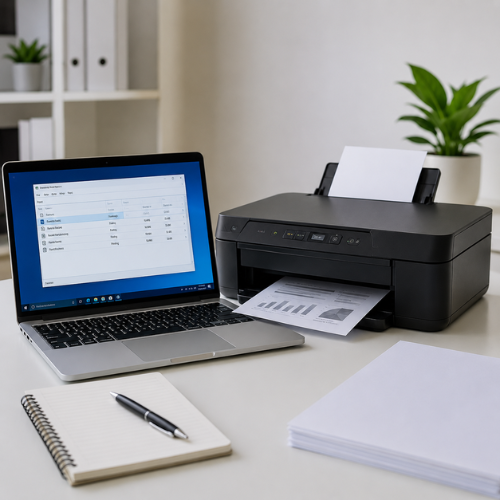
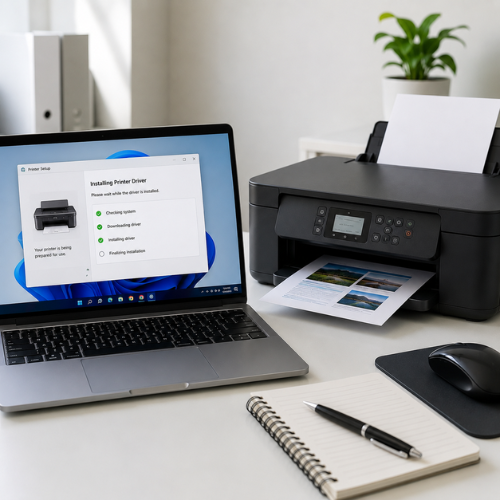
Printer driver guide visual

Driver setup or printer profile

A driver profile helps Windows show printer options and send the correct commands.

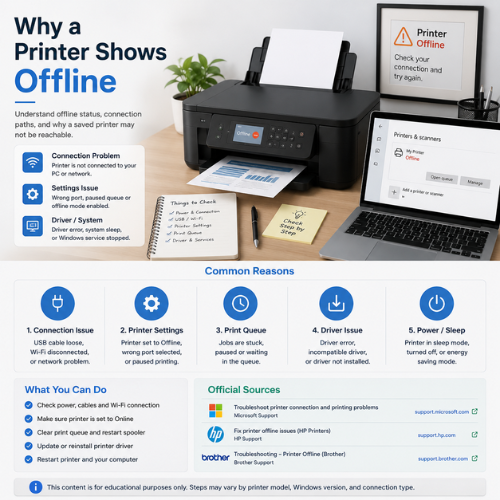
Printer unavailable or offline visual

Driver unavailable or offline status

Driver and connection issues can both affect whether a printer appears ready.

Print queue and driver communication visual

Print jobs waiting in queue

A print job passes through queue and driver layers before reaching the printer.

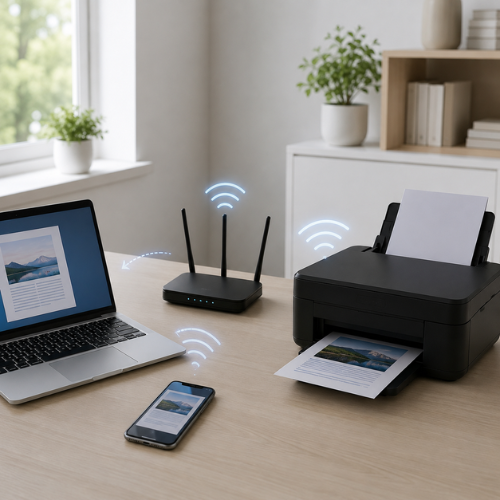
Wireless printer driver connection visual

Wireless printer driver profile

Wi-Fi printers need network visibility and a working driver profile to print correctly.

Installation Methods

How printer drivers are usually installed.

Windows automatic detection

Windows may detect a connected printer and install a compatible driver automatically.

Windows Update

Some printer drivers may be offered through Windows Update or optional updates.

Manufacturer website

Printer brands may provide model-specific drivers and full-feature software.

Network discovery

Network printers may be found when the device and computer are on the same local network.

Correct Driver

How to identify the correct driver.

Check printer brand

HP, Canon, Epson, Brother, Xerox, Samsung, and others may use different driver packages.

Check exact model number

The model number is usually on the printer body, label, box, or settings page.

Check Windows version

Driver compatibility can depend on Windows 10, Windows 11, or system architecture.

Check feature needs

Basic printing may use a simple driver, while scan or advanced settings may need full-feature software.

Checklist

Printer driver troubleshooting checklist.

Confirm printer is powered on
Check USB, Wi-Fi, or network connection
Confirm exact printer model
Check if driver unavailable message appears
Remove duplicate printer profiles
Use Windows Update or official manufacturer source
Restart printer and computer
Print a test page after changes
FAQ

Printer driver questions.

01

What is a printer driver?

+

A printer driver is software that helps the operating system communicate with the printer and send correct print instructions.

02

Can a printer work without a driver?

+

Some printers may work with basic built-in drivers, but full features often require the correct model-specific driver or software.

03

Why does Windows say driver unavailable?

+

It may mean Windows does not have a working driver for that printer profile, or the driver is missing, incompatible, or damaged.

04

How do I know which driver I need?

+

Check the printer brand, exact model number, Windows version, and whether you need basic printing or full features such as scanning.

05

Are universal printer drivers okay?

+

Universal drivers can be useful for multiple printers, but they may not expose every model-specific feature.

06

Do Wi-Fi printers need drivers?

+

Yes, wireless printers usually still need a driver or printer profile so the computer can send correct print instructions.

07

Should I download drivers from random websites?

+

No. Use Windows Update, Microsoft documentation, or the printer manufacturer website for safer driver information.

08

Is this page printer support?

+

No. This page is educational content only and does not provide phone support, remote access, repair service, installation service, or paid troubleshooting.