Printer is powered off or in sleep mode
Some printers enter sleep mode after inactivity. Windows may show offline if the printer does not respond quickly.
What to check
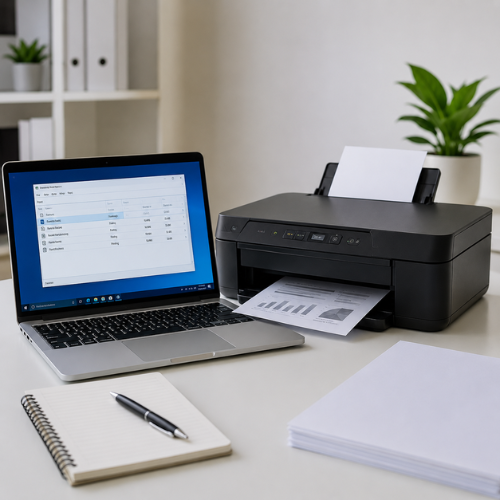
Learn what the offline message usually means, what users may see on screen, how print queue, USB, Wi-Fi, default printer settings, and drivers can affect printer visibility.
Status
Usually means
Common areas
Purpose
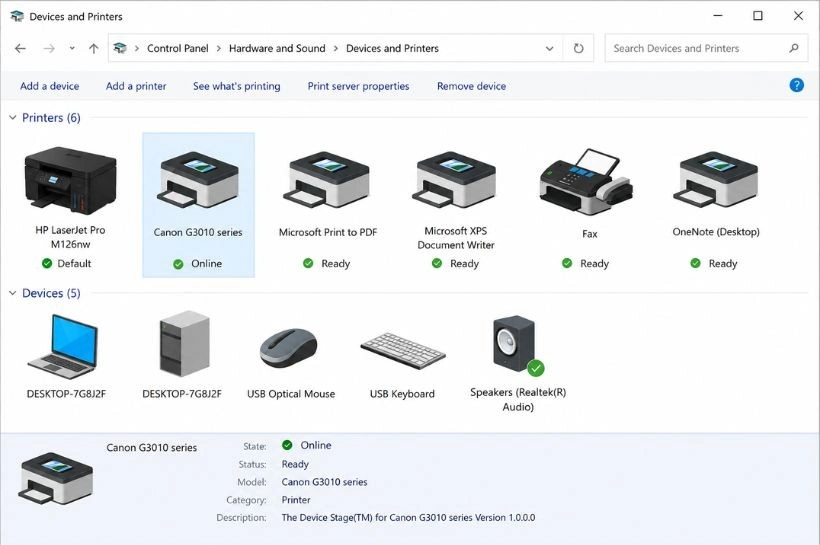
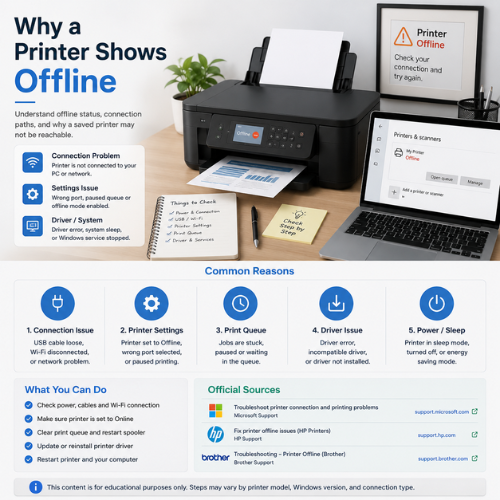
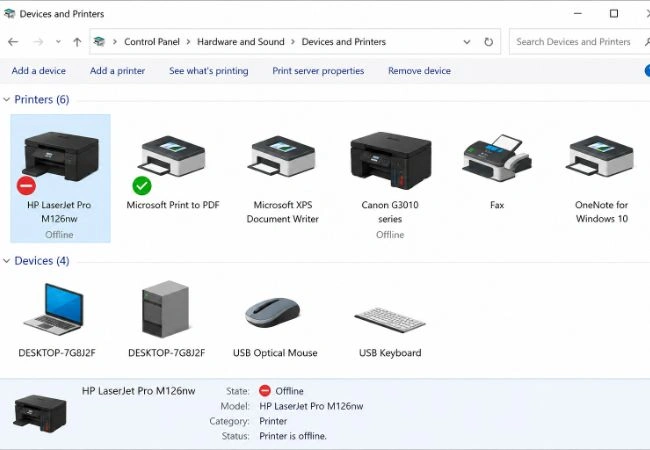
A printer showing Offline usually means the computer cannot currently communicate with the printer through the expected connection path. The printer may still be powered on, but Windows may not be receiving a ready response from it.
Offline status can appear with USB printers, Wi-Fi printers, network printers, and shared printers. The cause may be a cable, wireless network, print queue, default printer setting, driver, sleep mode, or saved printer profile.
This page explains what users commonly see and what each situation usually points to. It is an educational guide, not a printer repair service, remote support page, or paid troubleshooting service.
The printer appears in settings, but Windows cannot currently communicate with it. This can happen when the printer is asleep, disconnected, on another network, or blocked by a queue issue.
Print jobs may remain pending or paused. A stuck document can block later documents and make it seem like the printer is offline or not responding.
These checks follow common concepts found in official printer and Windows documentation. Exact labels and steps may differ by printer model, Windows version, connection type, and manufacturer software.
Some printers enter sleep mode after inactivity. Windows may show offline if the printer does not respond quickly.
What to check
For USB printers, the computer depends on a stable cable and port connection.
What to check
Wireless printers usually need to be on the same local network as the computer.
What to check
Windows includes a printer queue setting that can stop jobs from being sent normally.
What to check
A stuck document can block the queue and prevent later documents from printing.
What to check
If multiple printer profiles exist, Windows may send jobs to an older or unavailable printer.
What to check
The printer may be present, but Windows may not have the correct driver or saved profile.
What to check
Some printers stop responding normally when there is a paper, cartridge, tray, or cover warning.
What to check
Confirm the printer is on and not showing paper, ink, cover, tray, or cartridge warnings.
For USB, check the cable and port. For Wi-Fi, confirm the printer and computer use the same network.
Look for pending jobs, paused printing, or Use Printer Offline setting.
Cancel old jobs that are stuck before sending a new test page.
Make sure the correct printer profile is selected if multiple printers are listed.
Restart the printer, computer, and router if the connection state recently changed.
If the printer profile is old or not responding, adding it again may create a fresh profile.
A USB printer depends on the cable, port, power state, and driver recognition. If the cable is loose or the printer profile is not responding, the printer may appear offline.
A Wi-Fi printer depends on router discovery, signal strength, local network connection, and same-network visibility. Network changes can make an old printer profile stop responding.
Microsoft Support
Microsoft Support
Microsoft Support
Microsoft Support
HP Support
Brother Support
No. Offline status usually means the computer cannot currently communicate with the printer. It does not automatically mean the printer hardware is damaged.
Yes. A paused or stuck print job can block later jobs and make the printer seem unresponsive.
A Wi-Fi printer may go offline if the network changed, signal is weak, the printer is on a different network, or the router is not discovering it.
No. It is safer to use Windows Update, the printer manufacturer website, or official documentation for driver information.
No. This page is educational content only. It does not provide phone support, remote access, repair service, installation service, or paid troubleshooting.