Printer Setup Guide

How to set up a printer step by step.

Learn the complete printer setup flow in simple language: unboxing, power connection, ink or toner placement, paper loading, USB setup, Wi-Fi setup, printer drivers, test page meaning, and common setup messages.

Beginner friendly Printer only Educational guide
Printer setup learning guide

Topic

Printer Setup

Connection

USB / Wi-Fi

Includes

Driver Basics

Purpose

Educational Only

Setup Meaning

What does printer setup mean?

Printer setup is the process of preparing a printer so it can communicate with a computer, phone, tablet, or local network. A printer usually needs power, paper, ink or toner, a connection method, and the correct software layer before it can print properly.

Some printers are connected directly with a USB cable. Others are connected wirelessly through a Wi-Fi router. Office printers may also use Ethernet or network-based setup. The exact process can differ by printer model and manufacturer, but the basic setup ideas are usually similar.

This guide explains the setup process in a learning format. It is not a repair service page, remote support page, or software selling page. It is written to help readers understand what each setup step usually means.

Setup Issues Guide

Common printer setup issues and what they usually mean.

These are educational notes based on official printer and Windows documentation. Exact steps can differ by printer model, Windows version, USB/Wi-Fi connection, and manufacturer software.

01

Printer is not showing in printer settings

The computer may not be detecting the printer through USB, Wi-Fi, Bluetooth, or network discovery.

What to understand / check

  • Check whether the printer is powered on.
  • Check the USB cable or wireless connection.
  • Go to Bluetooth & devices > Printers & scanners and select Add device.
  • If the printer is not listed, wait for the printer list to finish loading or use the manual add option where available.

Official source

Microsoft Support: Add or install a printer in Windows

Visit source
02

Printer shows Offline

Offline usually means Windows cannot currently communicate with the printer through the expected connection path.

What to understand / check

  • Restart the printer and check the power state.
  • For wireless printers, confirm the printer and computer are on the same Wi-Fi network.
  • Open the printer queue and check whether Pause Printing or Use Printer Offline is selected.
  • Set the correct printer as the default printer if needed.

Official source

Microsoft Support: Troubleshooting offline printer problems

Visit source
03

Print job is stuck in the queue

A document may be waiting, paused, or blocked before it reaches the printer.

What to understand / check

  • Open the printer queue from Printers & scanners.
  • Cancel stuck or old print jobs.
  • Restart the printer after clearing old jobs.
  • If jobs continue to stay stuck, the print spooler may need attention.

Official source

Microsoft Support: Fix print job stuck in queue errors

Visit source
04

Printer driver unavailable or incompatible

Windows may not have the correct driver layer for the printer model, or the installed driver may not match the device.

What to understand / check

  • Open Printers & scanners and select the printer.
  • Check driver options or update driver where available.
  • Use Windows Update or the manufacturer documentation for compatible drivers.
  • Avoid using random driver downloads from unofficial websites.

Official source

Microsoft Support: Fix printer driver compatibility issues

Visit source
05

USB printer not recognized

The USB cable, USB port, printer power state, or driver recognition process may be interrupting detection.

What to understand / check

  • Check whether the USB cable is firmly connected to the printer and computer.
  • Try another USB port if available.
  • Restart the printer and computer.
  • If the printer still does not appear, remove and reinstall the printer from settings.

Official source

Microsoft Support: Fix printer connection and printing problems

Visit source
06

Wireless printer connects but cannot print

The printer may be on a different network, the router may not be discovering it, or the printer profile may not match the current connection.

What to understand / check

  • Confirm the printer is connected to the same Wi-Fi network as the computer.
  • Check router signal strength and printer wireless status.
  • Restart the printer and router if the connection changed recently.
  • Remove and add the printer again if Windows is using an old printer profile.

Official source

Microsoft Support: Fix printer connection and printing problems

Visit source
07

Slow printing or poor print quality

Print quality, paper type, paper size, or printer preference settings may not match the loaded paper or intended output.

What to understand / check

  • Open Printing preferences for the selected printer.
  • Check the selected print quality level.
  • Make sure paper type matches the paper loaded in the tray.
  • Use normal quality for everyday documents and higher quality only when needed.

Official source

Microsoft Support: Troubleshoot slow printing issues

Visit source
08

Printer appears, but test page does not print

The printer may be installed, but queue, connection, driver, paper, or default printer settings may still be blocking output.

What to understand / check

  • Check whether the printer has paper and ink or toner.
  • Open the print queue and remove pending jobs.
  • Make sure the correct printer is selected as default.
  • Restart the printer and try the test page again.

Official source

Microsoft Support: View a printer’s print queue

Visit source
Important Note

This is a learning guide, not a repair service.

Printer setup and troubleshooting steps can change by model, manufacturer software, connection type, and Windows version. For product-specific instructions, readers should use the printer manufacturer manual or official support documentation.

Before Setup

What usually comes inside a printer box?

Printer body

The main printer unit, usually packed with protective material and shipping tape.

Power cable

Used to connect the printer to a wall outlet or power source.

Ink or toner

Inkjet printers commonly use cartridges, while laser printers usually use toner.

Setup sheet

A printed quick-start document from the manufacturer.

USB cable

Some printers include a USB cable, but many wireless models may not.

Paper tray parts

Some printers include removable trays or guides for paper alignment.

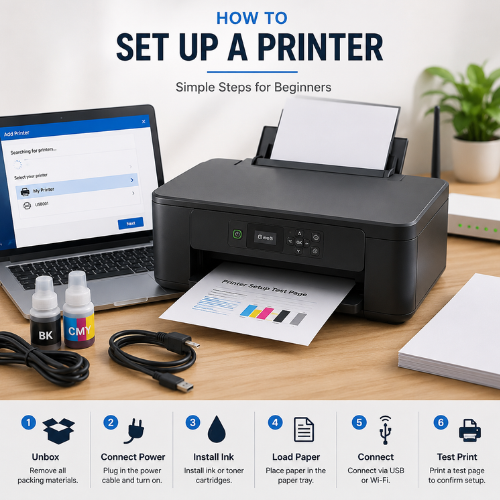
Setup Flow

Basic printer setup process.

These steps explain the general setup flow. Your printer may show different buttons, screen messages, or app prompts depending on its brand and model.

01

Remove packing materials

Remove protective tape, foam, plastic clips, and shipping locks before powering the printer.

02

Connect the power cable

Plug the printer into a stable power source and turn it on using the power button.

03

Install ink or toner

Insert cartridges or toner into the correct slots. Some printers may ask for cartridge alignment afterward.

04

Load paper correctly

Place paper into the tray and adjust the side guides so pages feed straight.

05

Choose USB or Wi-Fi setup

Use USB for direct connection or Wi-Fi when the printer needs to be shared wirelessly.

06

Add printer on the computer

Open printer settings and add the printer so the operating system can recognize it.

07

Install or confirm driver

The driver helps the computer understand paper size, color options, quality settings, and printer commands.

08

Print a test page

A test page confirms that power, paper, connection, driver, and printer communication are working together.

Connection Types

USB setup vs Wi-Fi setup.

USB Printer Setup

USB setup uses a direct cable between the printer and computer. It is often simple for one computer, but it may not be ideal when multiple devices need to print.

  • • Direct computer-to-printer connection
  • • Useful for single-device printing
  • • May need a driver installation
  • • Cable length and port condition matter

Wi-Fi Printer Setup

Wi-Fi setup connects the printer to a wireless network. It allows devices on the same network to discover and use the printer when configured correctly.

  • • Uses router and wireless network
  • • Helpful for multiple devices
  • • Same network usually matters
  • • Signal strength can affect discovery
Setup Messages

Common messages during printer setup.

Printer offline

The computer cannot currently communicate with the printer connection path.

Driver unavailable

The system may not have the correct software layer for the printer model.

Paper empty

The tray may be empty, the paper may not be aligned, or the sensor may not detect it.

Cartridge not detected

Ink or toner may not be seated correctly or the protective strip may still be attached.

Printer not found

The computer may not discover the printer through USB, Wi-Fi, or network search.

Setup incomplete

A setup step, app prompt, network confirmation, or driver step may not have finished.

Beginner Notes

Common setup mistakes beginners should understand.

01
Connecting the printer to a different Wi-Fi network than the computer.
02
Skipping ink or toner alignment after first setup.
03
Loading paper loosely or using the wrong paper size setting.
04
Trying to print before the driver or printer profile is ready.
05
Leaving protective tape on ink cartridges or inside printer compartments.
06
Selecting the wrong printer when multiple printer names appear in settings.
07
Ignoring test page output quality during first setup.
Checklist

Printer setup checklist.

Power cable connected
Ink or toner installed
Paper loaded correctly
Printer turned on
USB or Wi-Fi selected
Printer added in settings
Driver recognized
Test page printed
FAQ

Printer setup questions.

01

Do all printers need setup?

+

Yes. A printer usually needs power, paper, ink or toner, connection setup, and recognition by the computer or network before it can print.

02

Is USB setup easier than Wi-Fi setup?

+

USB setup can be simpler for one computer, while Wi-Fi setup is useful when multiple devices need to print wirelessly.

03

What is a printer driver?

+

A printer driver is software that helps the operating system understand printer features and send correct print instructions.

04

Why print a test page?

+

A test page helps confirm that the printer, paper, connection, driver, and basic output are working together.

05

Is this page printer support?

+

No. This page is educational content only and does not provide phone support, remote access, repair, installation service, or paid troubleshooting.