Printer and computer are on different Wi-Fi networks
Many wireless printers must be on the same local network as the computer or phone.
What to check
Learn how wireless printers connect through a router, why the same Wi-Fi network matters, what printer discovery means, and why Wi-Fi printers may show offline or not found.
Topic
Needs
Common Issue
Purpose
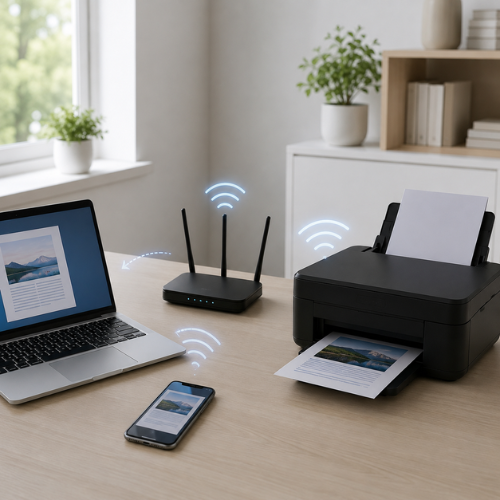
A Wi-Fi printer usually connects to a wireless router. Computers, phones, and tablets on the same local network can then discover the printer and send print jobs to it.
This is why wireless printing depends on three things working together: the printer, the router, and the device sending the print job. If one part is not visible on the same network, the printer may appear offline or may not appear at all.
This guide explains Wi-Fi printer concepts in simple language. It is written for learning only and does not provide phone support, remote access, repair service, or paid troubleshooting.
Laptop or phone sends a print request.
Router helps devices find each other locally.
Printer receives the wireless print job.
Driver/profile provides printer instructions.
Printer processes and prints the page.
The printer must be connected to the correct Wi-Fi network before other devices can discover it.
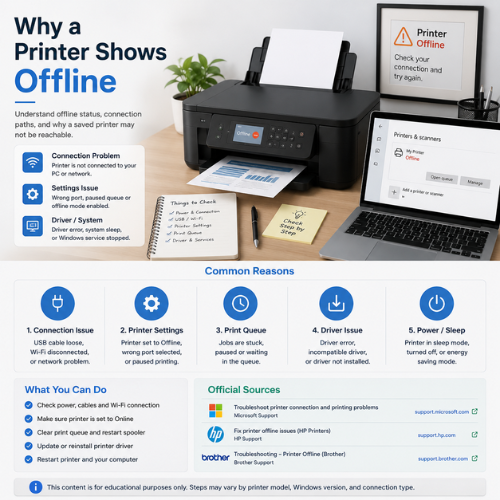
Windows may remember the printer, but the current Wi-Fi path may not be responding.
These checks are educational and based on common printer networking concepts. Exact names and steps can differ by Windows version, router model, and printer brand.
Many wireless printers must be on the same local network as the computer or phone.
What to check
Some routers separate 2.4 GHz and 5 GHz networks. Discovery may depend on router settings.
What to check
Distance, walls, shelves, or router placement can weaken the wireless connection.
What to check
If the router name or password changed, the printer may still remember old network details.
What to check
The printer may be discovered, but print queue, driver, or communication state may still be blocked.
What to check
Some guest networks or router settings prevent devices from seeing each other.
What to check
Wireless discovery may find a printer, but Windows still needs a working printer profile.
What to check
The printer may require confirmation, password entry, setup app action, or router pairing.
What to check
Use printer control panel or setup app to start wireless setup mode.
Select the same Wi-Fi network used by the computer or phone.
Use the correct network password and wait for connection confirmation.
Open printer settings on the computer and search for available printers.
Windows may install a compatible driver or create a printer profile.
A test page confirms printer, network, driver, and queue communication.
Understanding these terms helps users understand why a Wi-Fi printer may appear, disappear, or show offline after network changes.
The Wi-Fi network name shown in available networks.
The device that lets local devices communicate and access internet.
Printer and computer must usually be on the same local network.
The saved printer entry and driver configuration on the computer.
A network address assigned to the printer by the router.
A separate network that may block device discovery.
2.4 GHz and 5 GHz networks may behave differently.
The waiting list where wireless print jobs are held before printing.
Microsoft Support
Microsoft Support
Microsoft Support
HP Support
Brother Support
Canon Manuals
Usually yes. The printer and computer normally need to be on the same local network so the printer can be discovered.
The printer may be on another Wi-Fi network, asleep, out of range, blocked by guest network settings, or missing a printer profile.
Yes. It may show offline if the router path, printer profile, driver, or print queue is not responding.
Yes. Wireless printers usually still need a driver or printer profile so the computer can send correct print instructions.
Guest networks may isolate devices, which can prevent a computer from seeing a printer on the network.
No. This page is educational content only and does not provide phone support, remote access, repair service, installation service, or paid troubleshooting.