Printer supplies are the materials a printer uses to create output. The most common supplies are ink, toner, and paper. If the supply type, paper size, or tray setting does not match what the printer expects, users may see warnings or poor print quality.
Printer supplies affect more than the page
Ink, toner, paper, tray alignment, paper type, and printer settings all work together. A printer may have enough ink or toner, but still produce poor output if the paper type is wrong, the tray guides are loose, or the print quality setting does not match the document.
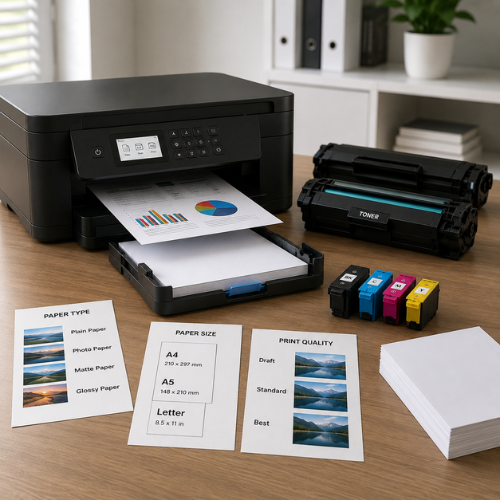
Ink vs toner: what is the difference?
Ink and toner are used by different printer technologies. Inkjet printers commonly use liquid ink cartridges. Laser printers commonly use toner powder that is fused to the paper using heat.
Ink cartridges
Ink cartridges contain liquid ink. They are commonly used in inkjet printers and can be used for documents, color pages, and photos depending on the printer model.
Toner cartridges
Toner cartridges contain powder. They are used in laser printers and are often associated with sharp text printing and higher-volume document output.
Paper size, paper type and tray settings
Paper is not only “blank sheets.” Printers use paper size and paper type settings to decide how the page should feed and how much ink or toner should be used.
Paper size
A4, Letter, Legal, envelopes, photo sizes, and labels must match document and printer settings.
Paper type
Plain, glossy, matte, photo paper, cardstock, labels, and envelopes may require different settings.
Paper tray
The tray holds the paper and uses side guides to keep sheets straight during feeding.
Paper weight
Thicker paper may need a supported tray or a specific media setting.
Tray guides
Paper guides should touch the stack lightly without bending the paper.
Margins
Some printers cannot print to the very edge of the paper unless borderless printing is supported.
How supplies affect print quality
Print quality depends on more than a full cartridge. It can be affected by paper type, print quality mode, color settings, toner condition, ink flow, tray alignment, and printer maintenance settings.
Common quality clues
Faded output
May relate to low supply, draft mode, toner distribution, or print quality setting.
Streaks or lines
May relate to printhead/nozzle, toner/drum, dirty scanner glass, or paper path issues.
Smudging
May relate to paper type, wet ink, wrong media setting, or toner fusing issues.
Wrong colors
May relate to color cartridges, driver settings, color mode, or print quality profile.
Common supply and paper messages
Printer messages vary by brand and model. These notes explain what the messages usually point toward.
Low ink or low toner
The printer estimates that the supply level is low.
What to understand
Check the printer display, app, or official supply status page.
Cartridge not detected
The cartridge may not be seated correctly or may not match the printer model.
What to understand
Confirm cartridge position, model compatibility, and protective tape removal.
Paper mismatch
The loaded paper size or type may not match the selected printer setting.
What to understand
Check document size, printer preferences, and tray paper size.
Paper jam or feed issue
Paper may be curled, overloaded, misaligned, or stuck in the paper path.
What to understand
Follow the printer manual before removing stuck paper.
Blank or faded pages
This may relate to low supply, wrong quality mode, clogged nozzles, or toner condition.
What to understand
Check supply level, print quality mode, and official maintenance options.
Wrong tray selected
The printer may try to pull paper from a tray that is empty or not intended.
What to understand
Check printer preferences and selected paper source.