Setting up a printer is usually a sequence of small steps: preparing the printer, adding supplies, loading paper, connecting it to a device or network, and confirming that the computer can send a print job. The exact buttons and screens can differ by brand and model, but the basic ideas are similar.
Before you start
Place the printer on a flat surface near a power outlet. Keep enough space around the printer so paper trays, scanner lids, rear doors, and access panels can open without obstruction. If the printer is wireless, try to place it where the Wi-Fi signal is stable.
Power access
Keep the printer near a stable wall outlet before starting setup.
Network access
For Wi-Fi setup, know the correct network name and password.
What usually comes inside the printer box?
Most printer boxes include the printer body, a power cable, setup documentation, and either ink cartridges or toner depending on printer type. Some printers may include a USB cable, but many modern wireless printers do not.
- Printer body: The main device, usually protected with tape and packing material.
- Power cable: Used to connect the printer to a power outlet.
- Ink or toner: Inkjet printers usually use ink cartridges, while laser printers use toner.
- Setup sheet or manual: Manufacturer instructions for your specific model.
- Paper tray parts: Some printers include detachable trays or guides.
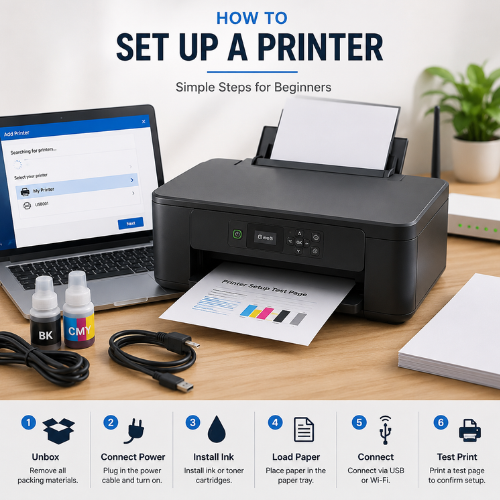
Printer setup steps explained
The steps below explain the general setup process. Always compare these notes with the official setup sheet for your exact printer model.
Remove packing materials
Remove tape, foam, plastic locks, and protective pieces from the printer body, trays, cartridge area, and scanner lid if present.
Connect power and turn on
Plug the power cable into the printer and wall outlet. Turn the printer on and wait for the startup process to finish.
Install ink or toner
Open the cartridge area and install the supplied ink or toner. Avoid touching contacts or nozzles unless the manual instructs otherwise.
Load paper correctly
Insert paper into the tray and adjust the side guides so the paper is straight but not squeezed tightly.
Choose connection method
Use USB for direct computer printing or Wi-Fi for wireless printing from multiple devices on the same network.
Add the printer on computer
Open printer settings and add the printer. Windows may search for nearby or connected printers.
Confirm printer driver
A driver or printer profile helps the computer understand printer features like paper size and print quality.
Print a test page
A test page confirms that power, paper, connection, driver, and printer communication are working together.
USB setup vs Wi-Fi setup
Printer connection type affects how the printer is discovered and used. A USB printer connects directly to one computer. A Wi-Fi printer connects through a router so multiple devices on the same network may be able to print.
USB setup
Useful for direct connection to one computer. Detection depends on the cable, port, printer power state, and driver recognition.
Wi-Fi setup
Useful for wireless printing. The printer and computer usually need to be on the same local network for discovery and printing.
Why printer drivers matter
A printer driver is software that helps the computer communicate with a printer. It helps translate print instructions into a form the printer can use. Printer drivers may affect paper size options, print quality, color mode, duplex printing, scanning features, and printer-specific settings.
Important driver note
Avoid random driver download websites. For driver information, use Windows Update, Microsoft documentation, or the printer manufacturer’s official support website.
Common setup messages beginners may see
Printer not found
The computer may not detect the printer through USB, Wi-Fi, or network discovery.
Driver unavailable
The system may not have a working driver for the selected printer model.
Paper empty
The tray may be empty or paper may not be detected correctly.
Cartridge not detected
Ink or toner may not be seated correctly or may not match the printer model.
Printer offline
The computer cannot currently communicate with the printer.
Setup incomplete
A setup step, confirmation, or connection stage may not be finished.