A printer showing Offline usually means the computer cannot currently communicate with the printer through the expected connection path. The printer may still be powered on, but Windows may not be receiving a ready response from it.
Offline does not always mean the printer is broken
Offline status can appear because of a loose USB cable, a Wi-Fi network change, a paused queue, a stuck print job, a driver profile issue, or a printer warning such as paper empty, cover open, low supply, or paper jam.
In simple words, the computer is saying: “I know this printer exists, but I cannot currently reach it in the expected way.”
What users may see on screen
Offline messages can appear in printer settings, print dialogs, print queues, or printer software. Sometimes the printer is listed, but print jobs remain waiting instead of printing.
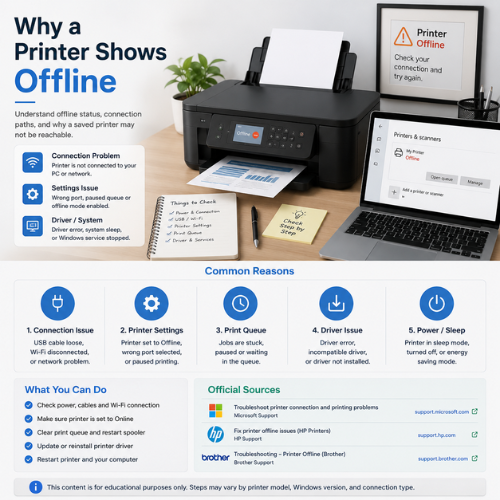
Printer listed as Offline
The printer appears in settings, but Windows is not receiving a ready response.
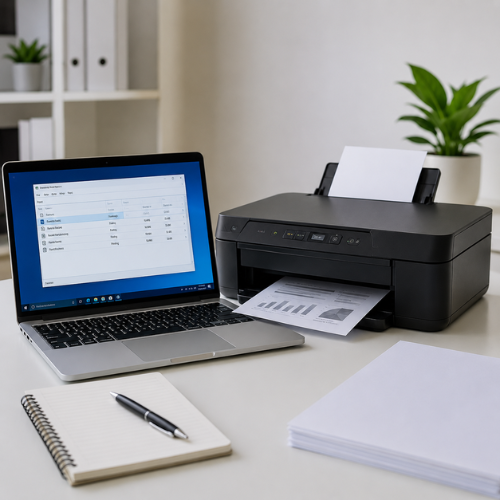
Jobs stuck in queue
Documents stay pending because the printer, queue, or connection is not ready.
Common reasons a printer may show offline
Offline status can come from hardware, network, queue, driver, or printer setting behavior. The table below explains what each situation usually means.
Printer is powered off or asleep
Some printers enter sleep mode after inactivity and may not respond immediately.
What to understand
Wake the printer, check the display panel, and confirm there are no warning lights.
USB cable or port issue
A USB printer depends on a stable cable and port connection.
What to understand
Check both cable ends, try another USB port, and avoid loose hubs during setup.
Different Wi-Fi network
Wireless printers usually need to be on the same local network as the computer.
What to understand
Compare the Wi-Fi name on the printer and the computer.
Use Printer Offline is enabled
Windows includes a queue setting that can hold jobs instead of sending them.
What to understand
Open the printer queue and make sure Use Printer Offline is not selected.
Print queue has stuck jobs
A failed or old print job can block later documents from printing.
What to understand
Open the print queue and cancel unnecessary pending jobs.
Wrong printer is selected
A document may be sent to an old, duplicate, or unavailable printer profile.
What to understand
Check the selected printer name and default printer setting.
Driver unavailable or old profile
The computer may not have a working driver or current printer profile.
What to understand
Use Windows Update or the printer manufacturer’s official support page.
Printer warning state
Paper, ink, toner, cover, tray, or cartridge warnings can interrupt printing.
What to understand
Check the printer display panel and resolve visible warnings using the manual.
A simple learning flow for offline status
These steps are written as general reading guidance. Exact labels can differ by printer model, Windows version, and printer software.
Check the printer screen
Look for paper, ink, toner, cover, tray, jam, or network warnings.
Check the connection
For USB, check the cable. For Wi-Fi, check the printer and computer network names.
Open the print queue
Look for pending jobs, paused printing, or Use Printer Offline setting.
Clear old jobs
Cancel unnecessary old jobs before sending a new test page.
Check the selected printer
Make sure the document is being sent to the correct printer profile.
Restart devices if needed
Restart the printer, computer, or router if the connection recently changed.
USB offline vs Wi-Fi offline
Offline status can look similar, but the cause may be different depending on how the printer connects.
USB printer offline
Usually depends on power, cable, USB port, driver recognition, and correct printer profile.
Wi-Fi printer offline
Usually depends on router discovery, same network, signal strength, and wireless printer profile.