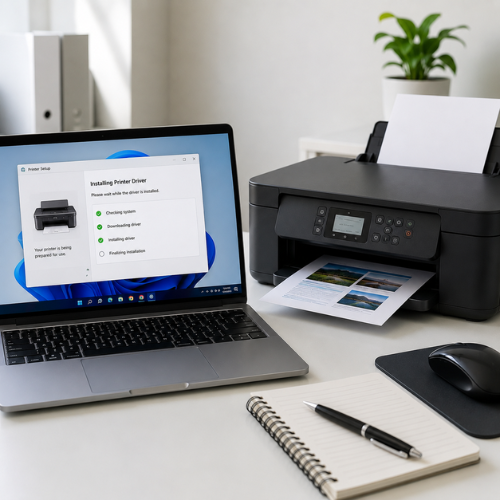
A printer driver is a software layer that helps the operating system communicate with a printer. When a user clicks print, the computer needs to send instructions in a way the selected printer model can understand.
A printer driver works like a translator
A document on the screen is not the same as a printed page. The computer needs to describe the page layout, paper size, print quality, color mode, margins, and printer-specific instructions. The driver helps translate those choices into print commands for the printer.
Without the correct driver or printer profile, the printer may still appear in settings, but some features may be missing. In other cases, Windows may show messages such as “Driver unavailable,” “Printer not detected,” or “Printer offline.”
How a print job moves through the driver
When a document is printed, it usually passes through the application, operating system, printer driver, print queue, and then the printer.
Document
The user chooses print from an app.
System
Windows prepares the print request.
Driver
Driver translates printer instructions.
Queue
The job waits before printing.
Printer
The printer receives and prints.
What printer drivers can control
A driver can affect what settings appear in the print dialog and how the printer handles the document. Different printer models support different features, so the correct driver matters.
Paper size
A4, Letter, Legal, envelope, photo paper, and other supported sizes.
Print quality
Draft, normal, high quality, color, grayscale, and resolution-related options.
Paper tray
Which tray the printer uses when multiple trays or media sources exist.
Duplex printing
Double-sided printing options when supported by the printer model.
Color settings
Color mode, black-and-white mode, saturation, and output profile options.
Scanner features
All-in-one printers may need full drivers for scanning and copy tools.
Why the correct driver matters
A generic or basic driver may allow simple printing, but it may not show every printer feature. A model-specific driver can provide better access to supported features, depending on the printer and operating system.
How to identify the right driver information
Printer brand
Check the manufacturer name such as HP, Canon, Epson, Brother, or another brand.
Exact model number
Use the model label on the printer body, box, settings page, or manual.
Operating system
Driver compatibility can depend on Windows version and system type.
Feature needs
Basic printing may need less than scanning, duplex, or full-feature software.
Common driver-related messages users may see
These messages do not always mean the driver is the only cause, but they are often connected to printer profiles, driver compatibility, or communication between the computer and printer.
Driver unavailable
Windows may not have a working driver for the selected printer profile.
What to understand
Check the exact printer model and use Windows Update or an official manufacturer source.
Wrong printer model selected
A similar model name may appear, but settings may not match the actual printer.
What to understand
Compare the printer model label with the selected printer profile.
Printer not detected
The printer may not be found because of USB, Wi-Fi, network, or driver recognition issues.
What to understand
Check power, connection, same network, and add printer settings.
Missing scan option
A basic driver may allow printing but not scanning or all-in-one features.
What to understand
Check whether full-feature software exists for your printer model.
Wrong paper options
If the driver does not match the printer, paper size or tray options may be incorrect.
What to understand
Review printer preferences and choose the correct printer profile.
Queue stuck after driver issue
Jobs may enter the print queue but fail to move forward if the driver layer cannot process them.
What to understand
Clear old jobs and confirm the printer profile is working.
Driver download safety note
Avoid random driver download websites. For driver information, use Windows Update, Microsoft documentation, or the printer manufacturer’s official support website. This reduces the risk of installing incorrect or unsafe software.