A print queue is a waiting list where print jobs stay before they are sent to the printer. When a user clicks print, the document is placed in this queue so the computer can organize the job and send it to the correct printer in order.
A queue helps manage print jobs
A printer can only process a limited number of tasks at one time. The print queue keeps jobs in order, shows their status, and lets users see whether a document is pending, paused, printing, or blocked by an error.
If one print job gets stuck, other jobs can stay behind it. This is why a printer may appear unresponsive even when it is powered on and connected.
How a document moves through the print queue
A print job normally passes through the application, driver, queue, and printer before it becomes a printed page.
Print command
User clicks print from an app.
Driver
Printer driver prepares instructions.
Queue
Job waits before being sent.
Printer
Printer receives the job.
Output
Page is printed on paper.
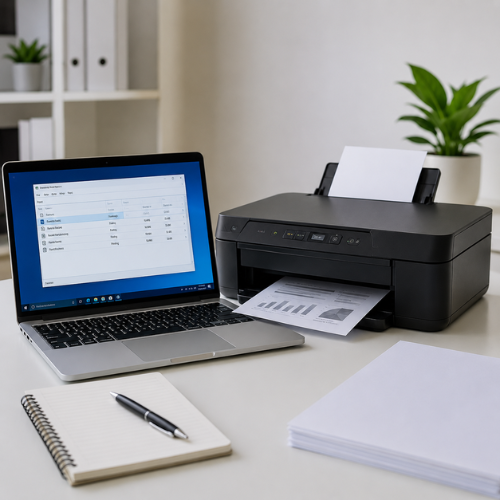
Common print queue statuses
Queue labels may differ by operating system and printer software, but these terms are commonly used.
Pending
The document is waiting before being sent to the printer.
Printing
The printer is currently processing or printing the job.
Paused
The job or full queue is stopped until printing is resumed.
Deleting
The selected job is being removed from the queue.
Error
Something is preventing the job from continuing.
Offline
The computer cannot currently communicate with the printer.
Common print queue issues users may notice
Queue problems can make printing feel stuck. Sometimes the printer is ready, but a job, driver, pause setting, or offline setting stops the queue from moving.
Document stays pending
The job is waiting and has not moved forward to the printer.
What to understand
Check whether the printer is powered on, ready, and not showing offline.
Queue is paused
Paused printing can stop all jobs from moving forward.
What to understand
Open the queue and look for pause or resume printing options.
Old job blocks new jobs
A failed job at the top of the queue can prevent later jobs from printing.
What to understand
Cancel old or duplicate jobs before sending a new test page.
Wrong printer selected
The job may be sent to an old printer profile or unavailable printer.
What to understand
Check the selected printer name and default printer setting.
Driver issue affects queue
A driver problem may allow the job to enter the queue but stop it from processing.
What to understand
Check for driver unavailable messages and use official driver sources.
Wireless delay
Wi-Fi printers may delay jobs when the network path is unstable.
What to understand
Confirm the printer and computer are on the same Wi-Fi network.
A simple print queue check flow
This flow is educational and general. Exact menu names can differ by Windows version, printer model, and printer software.
Open printer settings
Go to the area where saved printers are listed.
Select the correct printer
Choose the real printer, not an old duplicate profile.
Open the print queue
View documents waiting, paused, or pending.
Look for old jobs
A failed old job can block later documents.
Cancel unnecessary jobs
Remove duplicate or stuck jobs carefully.
Check pause/offline setting
Make sure printing is not paused and offline mode is not selected.
Try one test page
After clearing the queue, send one simple test page.